

A health and wellness DTC brand pinged me on a Tuesday: their German customers were complaining about USD prices on the checkout page hero. The store ran on Shopify Markets across 236 regions. Product cards converted fine. Banners did not.
I grepped the theme. 38 hardcoded USD strings sat across announcement bars, comparison tables, and a custom landing page.
TL;DR: Shopify Markets converts prices only when they pass through a Liquid money filter. Static strings like $29.99 are invisible to the conversion engine and ship in your base currency to every market. The fix is to grep your theme for currency symbols, swap each match to {{ amount | money }}, and delete any JavaScript price rewriter. Server-side Liquid removes the FOUC, the CLS spike, and the trust hit in one pass.
Why this matters for your store
- International visitors who see mixed currencies on a single page distrust the site. That trust dip shows up in checkout abandonment, not analytics events.
- JavaScript price rewriters cause CLS spikes that fail Core Web Vitals and quietly tank organic visibility.
- Every hardcoded price compounds support tickets (“Why is this in dollars?”) and refund requests on the wrong exchange rate.
Why is my Shopify Markets currency not updating on the product page?
Because the price on that page never passes through a Liquid money filter. Markets converts prices on Shopify’s server at the Liquid layer, so anything that skips | money renders in your base currency no matter what country the shopper is in. The clearest tell is a store where the product cards convert but the product page or a custom landing page does not: the card outputs product.price | money, while the PDP carries a hardcoded string, a subscription widget, or a script that writes the price after load.
This is the part Shopify’s own docs and the AI answers skip. The Markets setup docs and the community threads walk you through adding markets and exchange rates, which is the configuration, not the theme code. If your markets are already set up and the currency still will not update on the product page, the problem is not in your Markets settings. It is a price in the theme that the conversion layer never sees.
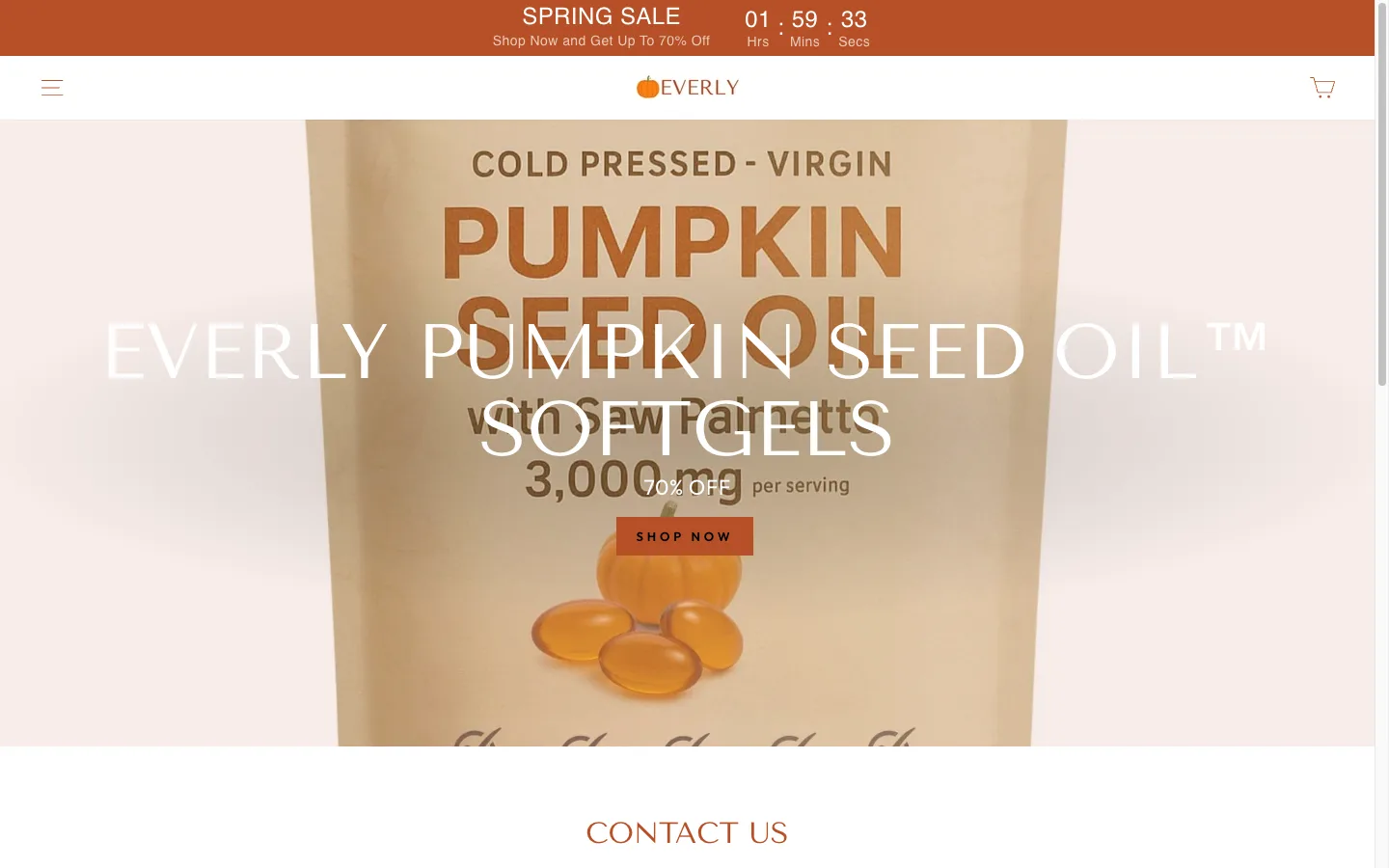
On the Everly store below, the product cards converted and the custom landing page did not. The cause was 38 hardcoded USD strings plus a script reformatting prices in JavaScript, and both are invisible to Markets. The rest of this post is how to find and fix every one.
Why hardcoded prices break Shopify Markets
Shopify’s multi-currency engine works at the Liquid rendering layer. When a visitor from Germany hits your store, Shopify’s server converts prices using the exchange rate you set in Markets, then sends pre-converted HTML to the browser.
That conversion only sees prices output through Liquid objects. product.price | money converts. A literal $29.99 typed into a section text field does not.
I see this pattern across Dawn, Impulse, and Focal stores every quarter. Dawn is the cleanest because Shopify maintains it, but custom landing pages built on top still leak hardcoded prices into the markup. Focal and Impulse give merchants more text settings, which means more places to type a dollar sign by accident.
I documented the full failure end-to-end in the Everly Shopify Markets case study, where 38 hardcoded USD strings on a custom landing page broke conversion across 236 international regions.
These convert correctly:
{# sections/main-product.liquid #}
{{ product.price | money }}
{{ cart.total_price | money }}
{{ variant.compare_at_price | money }}
These never convert, no matter what currency the visitor is browsing in:
{# sections/announcement-bar.liquid #}
<p>Starting at $29.99</p>
<span>Save $10 on your first order</span>
<td>$49.99/month</td>
A German visitor sees EUR on product cards and USD on the announcement bar. The mismatch reads as a pricing bug.
Where hardcoded prices hide
After auditing roughly 60 Shopify themes for multi-currency issues, the same five locations show up repeatedly. Run the Shopify Hardcoded Price Detector on your live URL to scan the rendered DOM, or grep manually if you prefer command line.
| Location | Example pattern | Liquid fix |
|---|---|---|
| Announcement bars | “Free shipping over $50” | {{ 5000 | money }} |
| Section schema defaults | "default": "Starting at $29.99" |
Cents input + | times: 1 | money |
| Comparison and pricing tables | Hardcoded tier prices in cells | Pull from product objects or cents settings |
| Metafield text values | "$49.99" stored as string |
Use money metafield type or pipe through | money |
| Rich text content blocks | “Our kits start at $399” in blog/page | Avoid specific prices or use relative language |
Announcement bars
{# sections/announcement-bar.liquid #}
{# Bad: hardcoded #}
Free shipping on orders over $50

{# Good: dynamic #}
Free shipping on orders over {{ 5000 | money }}
5000 is the amount in cents. Shopify stores every price in the smallest currency unit, so $50.00 equals 5000 cents.
Section schema defaults
Many themes ship text settings with prices baked into the default value:
{
  "type": "text",
  "id": "promo_text",
  "label": "Promotional text",
  "default": "Starting at $29.99"
}
That value lands in settings_data.json and renders as plain text. It never touches the conversion pipeline.
The fix is a separate cents input piped through the money filter:
{
  "type": "text",
  "id": "promo_price_cents",
  "label": "Promotional price (in cents)",
  "default": "2999",
  "info": "Enter price in cents. 2999 = $29.99"
}
{# sections/promo-banner.liquid #}
Starting at {{ section.settings.promo_price_cents | times: 1 | money }}
The | times: 1 coerces the string into a number before | money runs.
Metafield values
If a metafield stores "$49.99" as a string, currency conversion ignores it. Switch the metafield type to money, or store the value in cents and pipe through | money at render time.
Rich text content blocks
Theme editor rich text, blog posts, and page content with prices are static strings. There is no clean Liquid escape hatch. Avoid mentioning specific prices in editorial content, or use relative language like “starting under $400” rewritten as “starting at our entry tier”.
Why a JavaScript price rewriter is the wrong fix
Most developers reach for client-side JavaScript when they spot the problem. Find the prices in the DOM, multiply by an exchange rate, replace the text. It looks tidy in code review.
// assets/currency-rewrite.js
// Don't do this
document.querySelectorAll('[data-currency-convert]').forEach(el => {
  const usd = parseFloat(el.textContent.replace('$', ''));
  const converted = usd * exchangeRate;
  el.textContent = currencySymbol + converted.toFixed(2);
});
Three reasons this approach fails in production.
1. Layout shift. The page paints with USD, then JS rewrites to EUR. EUR strings format differently (comma decimals, trailing symbol on some locales). Containers resize. CLS spikes. On the health brand, CLS hit 0.11 against the 0.10 Core Web Vitals threshold, killing the Good rating.
2. Flash of wrong prices. For 200 to 400ms every visitor sees USD before the rewriter fires. Shoppers in Berlin watch a $29.99 morph into 27,89 EUR mid-scroll. Shopify’s own Markets docs call this out: server-side conversion is the supported path.
3. Fragility. Selector-based scripts break on theme updates. A new section, a renamed class, and conversion silently stops with zero error in the console.
Deleting that 90-line rewriter and replacing the 38 hardcoded prices with money filters dropped CLS from 0.11 to 0.00 on the next deploy. No flash. No script tag. Conversion happens on Shopify’s edge before the HTML reaches the browser.

What about Dawn’s formatMoney JavaScript helper?
Older Dawn theme builds shipped a formatMoney(cents, format) JavaScript helper inside theme.js that mirrored the Liquid | money filter on the client. Every store on Dawn 9 or earlier carried it. If you migrated to Dawn 12+, that helper is gone from the bundled theme.js and the global Shopify.formatMoney() from assets/shopify_common.js is the documented replacement when client-side formatting is unavoidable (cart drawer line totals after AJAX add, for example).
The pattern that has aged best: render every price server-side via Liquid using | money or | money_with_currency, write the cents value into a data-price attribute on the same element, and have JavaScript only update the cents and re-format via Shopify.formatMoney(cents, theme.moneyFormat) after a cart event. That way the first paint is correct in Berlin, Tokyo, and London without any client-side rewrite, and JavaScript only touches the price node when the cart actually changes.
If you are still seeing formatMoney is not defined in the console after a Dawn upgrade, the inline call in your theme references the old helper. Replace it with Shopify.formatMoney() or, better, remove the inline call and let server-rendered Liquid carry the price.
The 5-step fix
Step 1: Find every hardcoded price
grep -rn '\$[0-9]' sections/ snippets/ templates/ layout/
grep -rn '\$[0-9]' config/settings_data.json
Then open each section in the customizer and scan text fields for price strings. Most builders skip this and miss half the matches.
Step 2: Categorize each instance
For each hit, decide the source: Liquid template, schema default, settings_data.json value, metafield, or content block. Each gets a different fix.
Step 3: Replace with the money filter
{# Static amount you control #}
{{ 5000 | money }}

{# Amount from a string setting #}
{{ section.settings.price_cents | times: 1 | money }}

{# Product price, already in cents #}
{{ product.price | money }}

{# With currency code suffix #}
{{ product.price | money_with_currency }}

{# Without currency symbol #}
{{ product.price | money_without_currency }}
money_with_currency outputs $29.99 USD, useful when you ship to multiple English-speaking markets and need disambiguation.
Step 4: Delete the JS rewriter
grep -rn 'currency' assets/*.js snippets/*.liquid
grep -rn 'money\|exchange\|convert' assets/*.js
Confirm every price now uses | money, then delete the script and any associated data attributes.
Step 5: Test 3 markets
In Shopify Admin go to Settings, Markets, then Preview. Switch to GBP, EUR, and JPY in turn. Walk the announcement bar, hero, product card, PDP, cart, and any custom landing page. Every price should render in the local currency with correct formatting and zero flash.
Common money filter mistakes
Cents versus dollars. {{ 50 | money }} outputs $0.50, not $50.00. Use {{ 5000 | money }} for $50.00. Half the bug reports I get on this topic come from this single mistake.
Strings instead of numbers. A setting that stores “29.99” as text breaks | money math. Multiply by 100 first: {{ section.settings.price | times: 100 | money }}.
Hardcoded currency symbols around the filter. Never write ${{ product.price | money_without_currency }}. The | money family already includes the right symbol per locale. Adding a literal $ breaks every non-USD market.
Compare-at prices. Custom badges and savings calculations frequently miss the filter on the strikethrough price. Audit both prices on every product card.
Does the Shopify Geolocation app fix hardcoded prices?
No. The Shopify Geolocation app shows a country-switcher banner that links to the right localized URL. It does not rewrite hardcoded prices in your theme code. If your sections/announcement-bar.liquid says Free shipping over $50, Geolocation will not change that to 590 NOK for a Norwegian visitor. Only the | money filter does that, because only the filter knows the customer’s selected currency at render time.
Geolocation, Shopify Markets, and currency apps all assume your theme outputs prices through the official filter chain. The moment a Liquid file types a literal currency symbol or number, those tools have nothing to convert. Fix the theme first. Then the country-switcher and Markets do their job.
The | money filter is the single most important Liquid filter for international stores. Use it on every price output, no exceptions. For deeper Liquid patterns, see my Shopify Liquid Development Guide. For the full audit framework including international pricing checks, read the Shopify CRO Audit Checklist.
The takeaway
- Grep your theme this week for currency symbols followed by digits and log every match.
- Replace each hardcoded price with the
| moneyor| money_with_currencyfilter pattern that fits its source. - Delete any JavaScript price rewriter once Liquid handles every price output server-side.
- Test in 3 currencies via Shopify Markets Preview before declaring the fix shipped.
- Audit announcement bars, schema defaults, and metafields quarterly. New content blocks reintroduce the bug.
Selling in multiple currencies and seeing FOUC, CLS spikes, or wrong prices on landing pages? Book a free 30-minute strategy call and I will audit your theme for hardcoded prices.