

I audited 14 Shopify stores this quarter. 5 of them showed a 0% GA4 conversion rate while Shopify recorded real daily revenue. The fix took under 90 minutes on each store. The cause was identical every time: one mismatched parameter in the dataLayer.
TL;DR: GA4 stitches view_item, add_to_cart, begin_checkout, and purchase into a funnel using item_name and item_id as keys. If your theme sends “Sips.TM Water Bottle” on view and “Candy” on purchase, GA4 treats them as separate products and reports zero conversions. Fix: standardise item_name to product.title across every event, kill duplicate sources, validate in DebugView.
Why this matters for your store
- Misattributed Meta and Google Ads campaigns get cut based on fake zero-conversion data, draining real revenue.
- A 30-minute DebugView audit catches the issue before your next ad budget review.
- Fixing the dataLayer also restores Google Ads conversion tracking when it imports from GA4.
Why GA4 shows zero conversions when Shopify shows sales
GA4 ecommerce reporting depends on parameter consistency. The four core events (view_item, add_to_cart, begin_checkout, purchase) must carry the same item_name and item_id values for every product, or GA4 cannot match them.
This is documented behaviour, not a bug. Google’s GA4 ecommerce reference names item_name and item_id as the primary keys for product matching across the funnel. Change either value between events and GA4 has no way to know they refer to the same product.
The cascade looks predictable once you have seen it twice. Funnel exploration breaks first. Then attribution dies in Google Ads, since most accounts now import conversions from GA4. Then your Whatagraph or Looker Studio dashboard silently inherits the zero-conversion problem and your ads team starts blaming Meta.
What broken GA4 tracking looked like at HelloSips
A DTC water bottle brand (HelloSips, sips480.com) hired me when their GA4 reported a 0% ecommerce conversion rate while Shopify recorded $34.95 unit sales every day. Their agency was running Whatagraph reports and seeing nothing. Meta had driven 1,000% more clicks month over month. The team was hours away from cutting the budget.
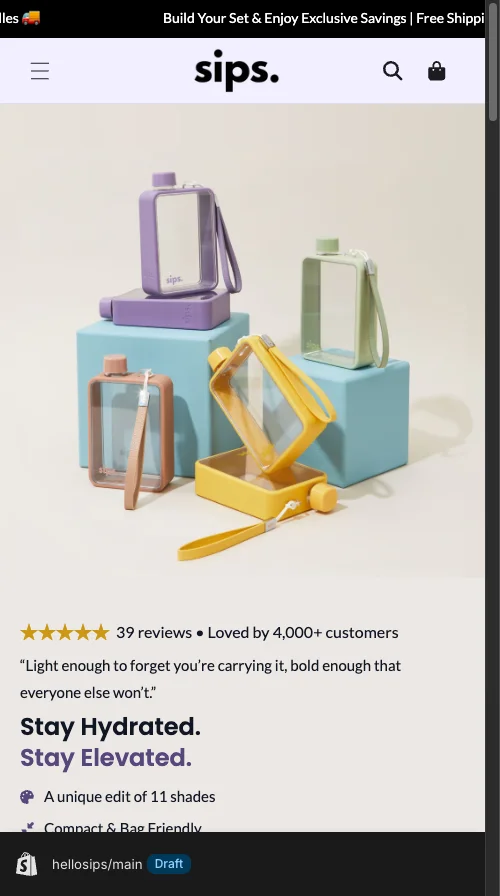
The theme contained a custom storefront-tracking.liquid snippet, 397 lines of JavaScript pushing GA4 events through Google Tag Manager. The view_item push pulled the right field:
dataLayer.push({
  event: "view_item",
  ecommerce: {
    items: [{
      item_name: {{ product.title | json }},
      item_id: {{ product.id | json }},
      price: {{ product.price | divided_by: 100.0 }},
      item_variant: {{ product.selected_or_first_available_variant.title | json }}
    }]
  }
});
item_name resolved to “Sips.TM Water Bottle”. Correct.
The add_to_cart, begin_checkout, and purchase events fired from a separate GTM tag wired into Shopify’s checkout dataLayer. That data source used the variant title as the item name. So GA4 received this on purchase:
{
  event: "purchase",
  ecommerce: {
    items: [{
      item_name: "Candy",
      item_id: "gid://shopify/ProductVariant/12345678",
      price: "34.95"
    }]
  }
}
GA4 saw a view_item for “Sips.TM Water Bottle” and a purchase for “Candy”. Two separate products as far as the funnel was concerned. Every conversion orphaned.
The debug flag draining production performance
The same snippet shipped with CONFIG.debug = true. Every visitor on every page logged the full dataLayer to the console. Not catastrophic on its own, but it leaked the entire tracking implementation to anyone who opened DevTools and ran extra JavaScript on every Shopify page load. I have inherited stores where this flag has been live for over a year.
The 5-step fix that restored attribution in 90 minutes
1. Map every ecommerce event source in GTM
Export your GTM container as JSON and search for view_item, add_to_cart, begin_checkout, and purchase. On HelloSips this surfaced three sources:
- The custom
storefront-tracking.liquidsnippet (view_item, select_item) - A GTM tag using Shopify’s checkout dataLayer (add_to_cart, begin_checkout, purchase)
- Shopify’s native Web Pixel (duplicating everything above)
Three sources. Two competing item-name conventions. One broken funnel.
2. Standardise item_name to product.title
item_name belongs to the product. item_variant carries colour, size, or finish. GA4’s recommended ecommerce events spec defines this split clearly. I rewrote the GTM variable that built the items array:
function getItemData(product, variant) {
  return {
    item_name: product.title,
    item_id: product.id.toString(),
    item_variant: variant.title,
    price: parseFloat((variant.price / 100).toFixed(2)),
    item_brand: product.vendor,
    quantity: 1
  };
}
Same function feeds every event. Same item_name everywhere. GA4 stitches the funnel.
3. Kill the duplicate Web Pixel
Shopify’s native Web Pixels API ships GA4 events when you connect a property in admin. Theme-level GTM tracking does the same job. Run both and you double every metric. I disabled the GA4 pixel under Settings > Customer events so GTM stayed the single source.
4. Flip CONFIG.debug to false
var CONFIG = {
  debug: false
};
One line. Saved on every page load.
5. Walk the funnel in GA4 DebugView
I installed the GA4 Debugger Chrome extension and ran a test purchase. Each event surfaced in Admin > DebugView with the same item_name: "Sips.TM Water Bottle" and matching item_id. GA4 stitched the funnel for the first time in months.
The other three Shopify GA4 issues I find on every audit
The item_name mismatch hits hardest, but it rarely travels alone. Once tracking is reliable, channel-level analysis usually surfaces deeper issues. See my 5 Shopify conversion leaks ranked by dollar impact for the prioritisation framework.
Duplicate events from theme code plus native Pixel
Both systems firing means GA4 receives two of every event. Sessions double. Conversion rate halves. Pick GTM if you need granular item parameters (you do), and turn off the native pixel.
Web Pixel sandbox firing phantom sessions
Shopify’s Web Pixels run inside a sandboxed iframe with its own execution context. The sandbox can emit its own page_view with a separate client ID. GA4 reads it as a new session with zero engagement. The signature: thousands of sessions with 0 second engagement and no events beyond page_view. If you spot that pattern, the sandbox is the source.
Bot traffic GA4 cannot filter
GA4’s built-in bot list catches known crawlers. It misses the rest. On a Shopify Plus client this March, 47% of total sessions were bots. I confirmed it by cross-referencing GA4 with Microsoft Clarity recordings. Bot sessions share a fingerprint: zero mouse movement, zero scroll depth, sub-second visit duration, geographic clustering. Install Clarity. It is free, it takes five minutes, and it shows you the truth GA4 cannot.
Audit your Shopify GA4 tracking in 30 minutes
You do not need a developer for this check. I cover the broader process in my Shopify CRO audit checklist.
- Open DebugView. Admin > DebugView in GA4. Install the GA4 Debugger Chrome extension.
- Walk the funnel. Visit a product, add to cart, begin checkout, complete a test purchase. Note the
item_nameon each event. - Compare values. If any of the four differ, your attribution is broken.
- Watch for duplicates. Two
page_viewevents on a single load means two sources are firing. - Check Google Ads conversion source. Tools > Conversions > Summary. If Source reads “Google Analytics 4” and your GA4 is broken, Ads bidding is running on bad data.
- Spot bots in Clarity. Scroll depth under 10% on most sessions, dead click rate near zero, and sub-second sessions all flag automated traffic.
Five non-negotiables for any Shopify GTM build
Make these contractual deliverables with any developer or agency. For the broader funnel framework see my complete Shopify CRO audit guide.
- One source of truth for ecommerce events. GTM or native pixel. Never both.
- A documented item parameter spec. Exact values for
item_name,item_id,item_brand,item_variant, verified across all four funnel events. - Debug flags gated behind a query parameter or cookie. Never a hardcoded boolean shipped to production.
- A written dataLayer specification. Every event, every parameter, every expected value. Without it, the next theme touch breaks tracking.
- Quarterly validation. Shopify checkout updates, theme JavaScript refactors, and new apps inject events that drift your spec.
Audit your tracking before your next campaign review. 30 minutes in DebugView beats three months of ad spend optimised against fictional data.
The takeaway
- Audit your dataLayer in GA4 DebugView this week and confirm
item_namematches across all four ecommerce events. - Pick GTM or Shopify’s native Web Pixel as your single source. Disable the other today.
- Standardise on
product.titleforitem_nameand push variant detail intoitem_variantonly. - Flip every
CONFIG.debugflag to false in production and gate logging behind a query parameter. - Install Microsoft Clarity to expose bot sessions and phantom Web Pixel page views GA4 hides from you.