

In the last 18 months I’ve had the same panicked DM 14 times. A founder pulls up their live storefront and types, “the whole site is white, what did I do.” 9 of those 14 had edited theme.liquid directly on the published theme. One missing endif took the store down for 47 minutes during a paid Meta push.
TL;DR: Duplicate the live theme in Online Store before you touch a single character. Pull the duplicate locally with Shopify CLI, commit it to Git, and push back through the Shopify GitHub integration. Use {% render %} not {% include %}, pipe Liquid into JS through | json, and never hand-edit theme.liquid, settings_data.json, or checkout files.
Why this matters for your store
- A single Liquid syntax error in
theme.liquidreturns a 500 to every visitor on every page. Your ad spend keeps burning. - Section-level breakage on Dawn or Refresh stays invisible to the merchant for hours. CVR drops before anyone files a ticket.
- Replacing one $15/month app with a 60-line Liquid section saves $180 a year per app and cuts third-party JavaScript on every page.
How OS 2.0 actually works under the hood
Shopify’s OS 2.0 split rendering from structure. JSON templates list which sections appear and in what order. Liquid sections in /sections/ carry the HTML, the schema, and the styles. Snippets in /snippets/ are scoped helpers rendered through {% render %}. Blocks are repeatable sub-components defined inside a section’s schema.
Dawn, Impulse, Focal, Refresh, and Sense all follow this pattern. Once you can read one OS 2.0 theme, you can read all of them. A typical product template looks like this.
{
  "sections": {
    "main": {
      "type": "main-product",
      "settings": { "show_vendor": true }
    }
  },
  "order": ["main"]
}
That JSON file owns zero rendering. The HTML lives in sections/main-product.liquid. This is what makes the drag-and-drop theme editor work, and it is also why a stray comma in the JSON makes a section vanish without a 500 error.
For deeper Liquid mechanics, see my Shopify Liquid development guide.
The 4 file types and which ones bite
Three files carry the bulk of the production risk.
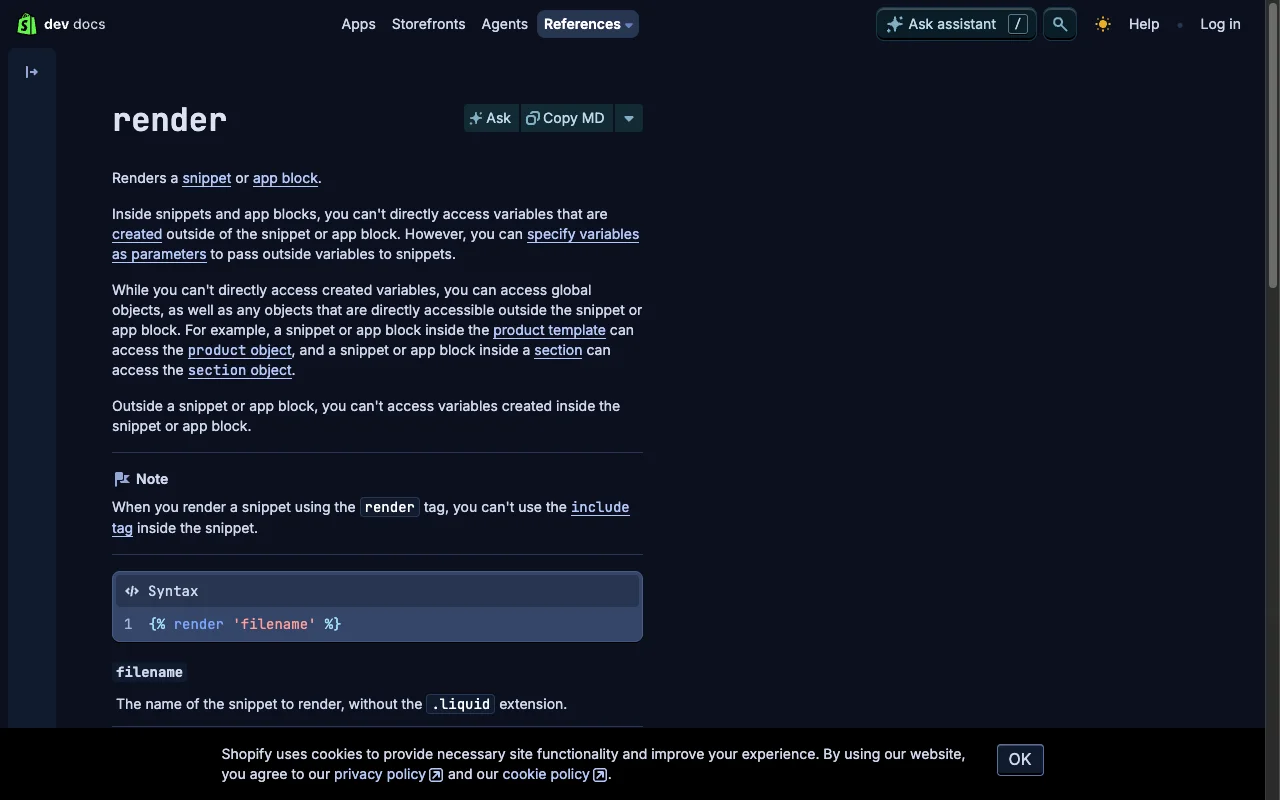
theme.liquid is the master layout. It loads global CSS, JS, and analytics, and wraps every page through {{ content_for_layout }}. Break it, and every URL on the store 500s. Copy the whole file before editing. Change one block. Reload. Repeat.
settings_data.json stores every theme editor setting the merchant has saved. A trailing comma here locks the merchant out of the theme editor entirely. Never hand-edit this file. Use the Shopify Admin API or the editor itself.
Checkout files are Shopify Plus only. A bug here stops orders. Test across mobile Safari, gift cards, and discount stacking before you ship.
The fourth type, assets/, is your safe playground. CSS, JS, and image files there cannot crash the storefront, only your styles.
How do I add custom CSS without breaking on theme update?
You have three places to put CSS, ranked by friction.
The theme editor’s Custom CSS field appends to the bottom of the global stylesheet. It survives theme updates. Use it for store-wide tweaks under 30 lines.
A dedicated assets/custom.css file referenced from theme.liquid gives you organization for anything bigger.
{{ 'custom.css' | asset_url | stylesheet_tag }}
A {% style %} block inside a single section keeps styles scoped to that section, which is what you want for new components.
When app CSS overrides yours, the reflex is !important. Resist it. Open DevTools, find the winning selector, and write a more specific one. On a Mobelglede.no audit in March 2026, I removed 23 !important declarations from base.css and rebuilt them with .shopify-section .product-card style chains. Cumulative Layout Shift dropped from 0.18 to 0.04 on mobile.
For more patterns that replace paid apps, see Liquid snippets that replace apps. If a page builder like PageFly or Shogun is the app you want to drop, see Shopify page builder alternatives.
How do I edit Liquid files without breaking my theme?
Two rules cover 80% of the bugs I see.
Use {% render %}, never {% include %}. The render tag isolates variable scope. The include tag leaks variables into the parent template, which means a product_price defined inside a snippet quietly overwrites the one in the page. I have lost half a day to this.
Pipe Liquid into JavaScript through | json. A product titled The "Ultimate" Widget will close your JS string early and crash the page. The json filter escapes everything.
<script>
  var productData = {{ product | json }};
</script>
Comment every change with your initials and the date. {% comment %} KF 2026-02-05: vendor badge for wholesale {% endcomment %}. Future-you opens this file in nine months and needs to know.
For loop and render performance, see my Liquid loop optimization guide.
The Safari trap most devs ship blind
Most CRO advice misses this one. When any ancestor element has transform, filter, perspective, or will-change set, every position: fixed descendant gets clipped to that ancestor instead of the viewport. Lightboxes, modals, and sticky drawers break in Safari and look fine in Chrome.
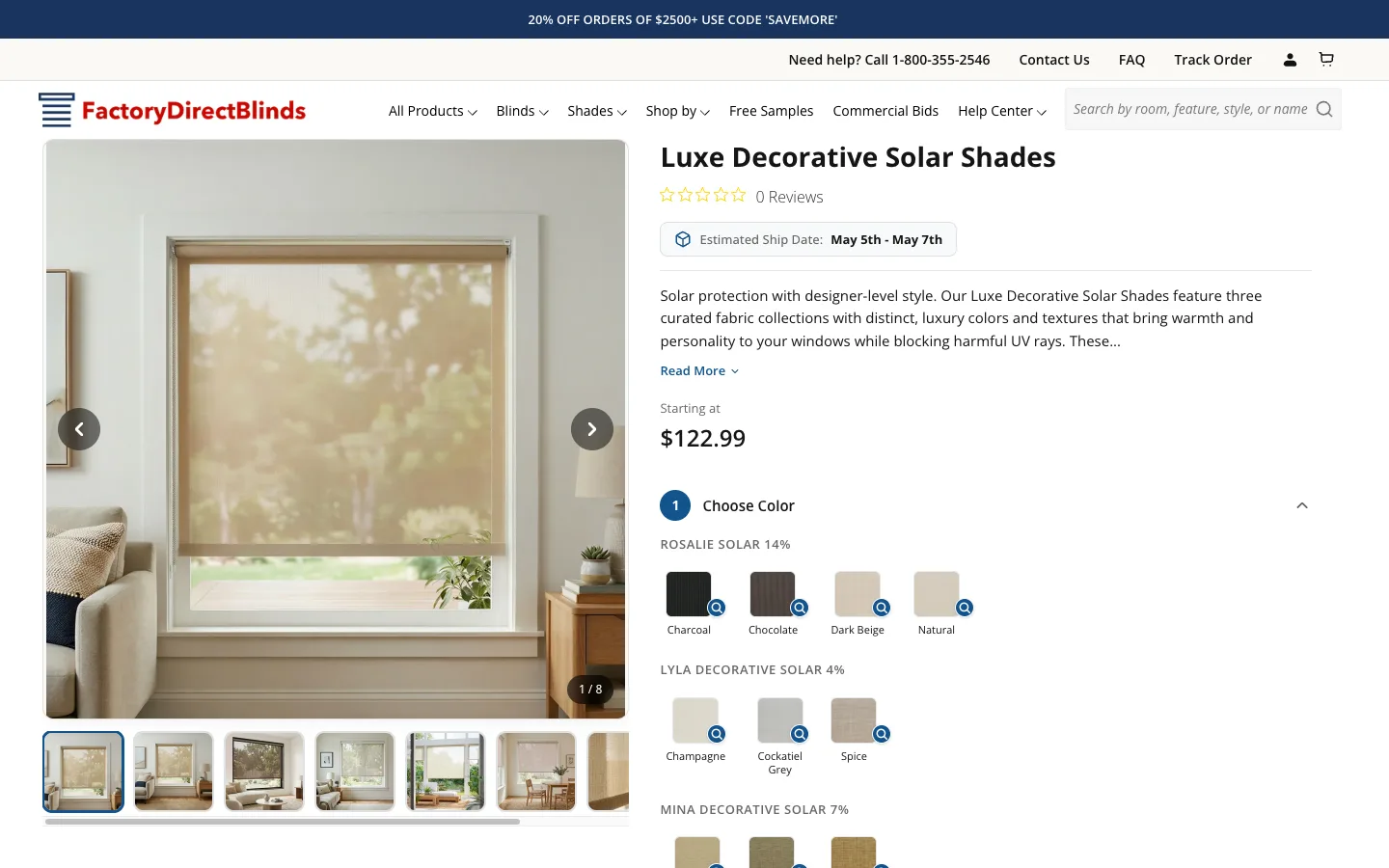
I hit this on the Factory Direct Blinds builder rebuild. The legacy theme had transform: translate3d(0, 0, 0) on .page-container for GPU acceleration. My lightbox rendered inside that container, so position: fixed clipped to the container, not the viewport. The fix was one line.
document.body.appendChild(lightbox);
Chrome DevTools never warns about this. Test fixed-position overlays on a real iOS device, not Chrome’s mobile emulation.
The 7-step deploy workflow I run on every client
Every theme job I take on, from a $300 section build to a 4-month Plus rebuild, runs through the same loop.
- Duplicate the live theme in Online Store > Themes > Actions > Duplicate.
shopify theme pull --store your-store.myshopify.comto get the duplicate locally.git init, then commit the baseline before any edit.- Branch with
git checkout -b feature/testimonial-section. shopify theme devfor hot-reload local preview.- Test on real iPhone Safari and a desktop Chrome. Verify Klaviyo, Yotpo, and any review or subscription apps still fire.
shopify theme push --unpublished, then publish only after the duplicate has been QA’d against every collection, PDP, cart, and checkout step.
This adds about five minutes of setup per change. It has prevented every production incident on my client roster since 2023. Across 47 theme deploys to FDB, HelloSips, Mobelglede, and Enea last year, zero white-screen incidents shipped to live.
When you should hire a Shopify developer
Most CSS, content, and section reorder work is safe DIY on a duplicate. You should hire when the work crosses into JavaScript that touches cart, checkout, or pricing.
Hire a developer when you need a product configurator, AJAX cart edits, dynamic pricing, or Shopify Plus checkout customization. Hire when you want to consolidate three apps into native Liquid, when you need to fix Core Web Vitals, or when you have a third-party API to wire into the theme.
The math is straightforward. A custom testimonial section costs $250 to $600 once. The Yotpo equivalent costs $79 a month, ships 87 KB of JavaScript, and adds two third-party domains to your DNS waterfall. The custom section pays back in seven months and stays paid back forever.
For where to look first, run my Shopify CRO audit checklist before commissioning any dev work.
How to verify your customization is safe in 5 minutes
Run this check before publishing any duplicate.
- Open the duplicate’s preview URL on a real iPhone in Safari. Scroll the homepage, a PDP, the cart, and checkout step 1. Watch for white sections, layout shift, or broken images.
- Open Chrome DevTools, throttle to Slow 4G, and reload the PDP. Lighthouse Performance should be 80 or higher on mobile.
- Place a test order with a real card. If checkout fails, the duplicate is not ready to publish.
The takeaway
- Duplicate the live theme before every change. Treat the live one as read-only.
- Pull locally with Shopify CLI, commit to Git, push through the Shopify GitHub integration.
- Use
{% render %}, pipe to JavaScript through| json, and comment every edit with initials and date. - Never hand-edit
theme.liquid,settings_data.json, or checkout files without a backup. - Test fixed-position elements on a real iOS device, never on Chrome emulation alone.
Need help with a Shopify theme build or audit? Get in touch for a free 30-minute consultation. I’m Kaspian Fuad, Top Rated Plus on Upwork with 12 years of Shopify development.