TL;DR: Shopify’s update button copies your theme editor changes, but it copies code edits only when they don’t conflict with the new version. Dawn alone shipped 4 releases in 2026. Update on a draft, list your edits, re-apply what was dropped, test the buy path, then publish. By my estimate, a lightly edited theme takes 3 to 8 hours, and a heavily customized one takes 10 to 25.
The success message is the one that catches people. “Theme added: code edits successfully included” means your edits didn’t clash with the new files. It doesn’t check that a custom CSS rule still finds the class it styles, and Shopify’s own update page tells you to check those selectors yourself.
If your developer edited the theme code and an update notice now sits in your admin, the risk is a dropped edit on the product page or cart. It throws no error and quietly costs sales until someone notices. I do theme updates as a fixed-price job for owners who’d rather hand it off.
The steps below cover themes from the Shopify Theme Store. A vintage theme has no update button at all, so it needs a migration instead.
Download the theme update checklist (PDF)
Why does a theme update matter for your store?
- Theme updates bring bug fixes and new features, so a store that never updates drifts further behind each release.
- A code edit that silently drops out of the product page or cart costs revenue before anyone files a ticket.
- The update itself is free, so almost all of the cost is the hours spent re-applying and testing custom code.
Shopify’s own Dawn theme lists 36 releases on GitHub since version 1.0.0 in June 2021. Four of them came in 2026, including 16.1.1 on November 2 and 16.2.0 two weeks later. Paid themes ship on their own schedule, so check the version number in Online Store rather than guessing.
What does Shopify copy over when you update a theme?
Shopify copies every change you made in the theme editor into the updated theme. Per Shopify’s updating themes guide, that covers theme settings, added or reordered sections and blocks, section and block content, new templates, app embeds and the wording you changed in the theme content editor.
Code is different. Shopify includes your manual code edits, and code an app wrote into your theme, only when those edits don’t conflict with the update. Files in the Templates folder and config/settings_data.json don’t count as code edits here, because the theme editor owns them.
When the copy lands in your draft themes, its card tells you which case you’re in:
- “Theme added: code edits successfully included” means nothing conflicted.
- “Theme added: code edits could not be included” means some edits are gone from the new copy.
Two more limits matter. Updates only exist for themes installed from the Shopify Theme Store on that store, so a theme bought elsewhere, or a Theme Store theme uploaded to a second store, gets no update button. And Shopify warns that changing a theme’s schema limits, such as raising a section’s block limit, can make the update fail.
Does “code edits successfully included” mean nothing broke?
No. A clean merge means your edited lines fit around the new files, not that they still work. The merge looks at your edited lines, not at what they do on the page, so it can’t see that a style rule now points at a class the new version deleted, or that a script waits for a button that moved. Here’s where included edits break anyway:
- CSS that targets a class the new version renamed or removed. The rule loads and styles nothing.
- JavaScript that listens for an element or event the new version changed, such as a cart drawer that now rebuilds itself differently.
- App code pasted into theme files years ago, which now runs against new markup. My post on leftover app code shows how much of it outlives the app.
None of these throws a visible error. The page renders, the button looks fine, and the bug shows up as a dip in add-to-cart a week later. That’s why testing the buy path matters more than reading the message.
How do you update a Shopify theme without losing customizations?
Work on a draft the whole way. You back up the live theme, list your edits, add the update as a draft, re-apply what was dropped, test the buy path on a phone, then publish. Your live theme stays untouched until the last step, and adding a draft costs nothing.
Before you click Add to draft themes
- Back up the live theme. Duplicate it in Online Store, and pull a local copy with the Shopify CLI theme pull command.
- List every customized file. If your developer worked in Git, the commit history is the list. If not, the developer handover checklist covers what to ask for.
Don’t rely on the code editor’s history as your backup. Shopify’s editing theme code guide says each file’s Timeline history is finite, so older versions might not be there.
No list and no Git? Compare the live code against a clean copy of the same version. For Dawn, that’s the matching release on GitHub:
# live theme vs untouched Dawn of the same version
shopify theme pull --theme <live-theme-id> --path live
git diff --no-index --stat dawn-15.4.1 live
Every file in that output is a customization you need to carry over, except templates/*.json and config/settings_data.json, which the theme editor copies for you.
While you review the updated copy
- Add the update to your draft themes and read the message on the card.
- Re-apply any dropped edit into the new version’s files, one file at a time, checking it against the new markup rather than pasting old code blind.
- Check that every custom CSS selector still matches an element in the new version.
Before you publish
- Test the money path on the draft with the preview link: product page, variant picker, add to cart, cart drawer, discount field and checkout button, on a phone and on desktop.
- Publish in a quiet hour, then watch add-to-cart and checkout numbers for the next 48 hours.
If you work with a developer, the Shopify GitHub integration syncs a branch to a theme and records admin edits as commits, which makes step 2 trivial next time.
How long does a Shopify theme update take, and what does it cost?
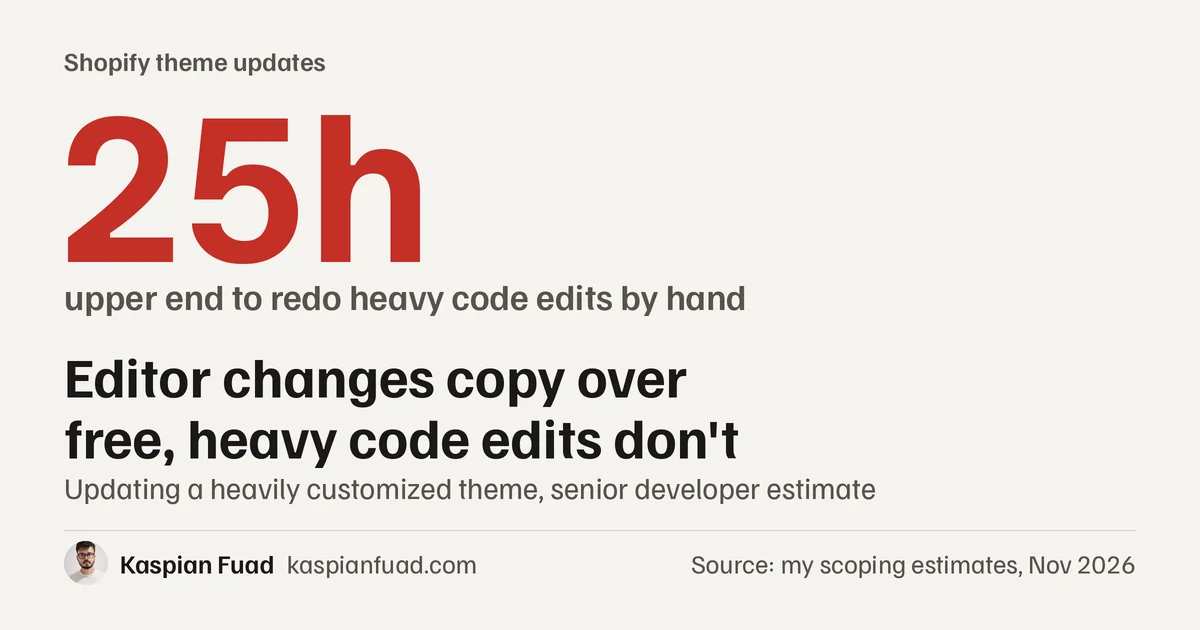
A theme update takes 1 to 25 hours of work, depending on how much custom code it carries. The update itself is free. These hours are my scoping estimates for a typical DTC store, priced at a US senior freelance median of $60 an hour and a $150 agency rate:
| Your theme | What the work is | Typical hours | US median ($60/h) | Agency ($150/h) |
|---|---|---|---|---|
| Theme editor changes only | Test the draft, publish | 1 to 2 | $60 to $120 | $150 to $300 |
| A handful of code edits | Diff, re-apply, test | 3 to 8 | $180 to $480 | $450 to $1,200 |
| Custom sections, app code, 20+ edited files | Rebuild edits on new markup, full QA | 10 to 25 | $600 to $1,500 | $1,500 to $3,750 |
| Vintage theme, or a jump to a new theme | A migration, not an update | 25 to 40 | $1,500 to $2,400 | $3,750 to $6,000 |
The last row is a rebuild. I scoped one in my Horizon vs Dawn migration guide, where a customized store landed at 25 to 40 hours of build and QA.
I don’t bill theme updates by the hour. I quote them as a fixed price after I’ve seen the diff.
When should you hire someone to update your Shopify theme?
Do it yourself when the card says “code edits successfully included” and you can test the buy path on a phone in under an hour. Hire a developer when the card says “could not be included”, when nobody can list what was customized, or when app code lives inside your theme files.
The best fix is upstream: build custom work so updates stay cheap. On a three-storefront Shopify Plus program I built, every custom file sits under its own project prefix and the vendor’s Horizon files stay untouched, apart from a short documented exception list. Horizon updates then land without merge pain, because almost nothing I wrote lives inside a file Shopify replaces.
The same rule shows up in client feedback. Jack T. at Everly wrote on Upwork that I “fixed everything on a duplicate theme without touching the live store.” That habit is the whole point of a draft-first update.
How do you check a theme update in 5 minutes?
- Open the updated draft’s preview on your phone and add a product to the cart from a product page.
- Compare the cart drawer, discount field and checkout button with the live theme, side by side.
- Search each custom CSS class in the preview with Chrome DevTools to confirm it still matches something.
If any of the three fails, don’t publish. Fix it on the draft first, or keep the live theme and book the update properly.
The takeaway
- Update on a draft theme and never edit the live one.
- List every customized file before you click Add to draft themes.
- Treat “code edits successfully included” as a merge result, not a test result.
- Test the product page, cart and checkout button on a phone before you publish.
- Build future custom code in your own prefixed files so the next update stays cheap.
Print the checklist above and work through it on your next update notice. If your card says “could not be included” and you’d rather not untangle it yourself, see how I work and what I charge.