

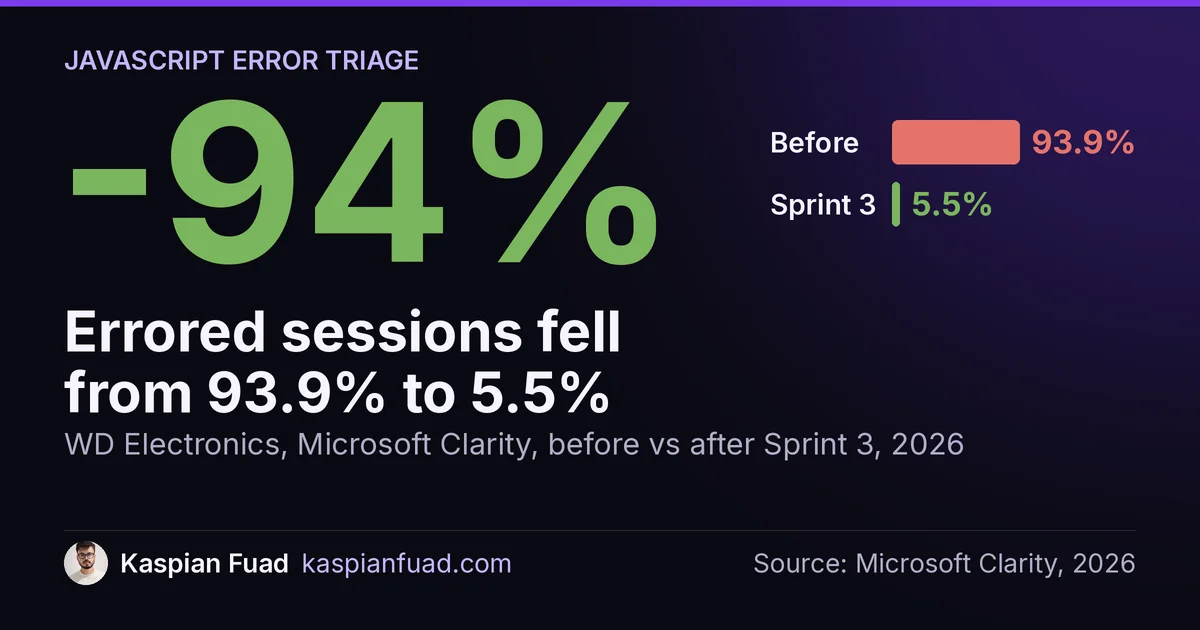
TL;DR: A Shopify store’s JavaScript errors only cost sales when they fire on the buying path: product form, variant picker, cart drawer, checkout button. Sort every error into three buckets (breaks buying, slows the page, noise) before you pay anyone. On WD Electronics, Clarity counted an error in 93.9% of sessions; three sprints of fixes took it to 5.5%.
Clarity counts a session as errored when any script throws, whether it runs your cart or a review carousel nobody scrolls to. The number that maps to lost orders sits behind a toggle in the same widget: Click errors, the errors that fire right after a shopper taps something.
So a scary percentage isn’t a diagnosis. Below are the three buckets, a 10 minute method to pin each error on an app or a theme file, and what fixing them did on stores I work on. If your errors all land in bucket three and the store converts, keep your money.
Download the JavaScript error triage checklist (PDF)
Why this matters for your store
- A broken product form loses the shoppers who already chose a product, your highest-intent revenue.
- A noisy error count sends a developer after harmless messages and bills you hours for nothing.
- An app error you never see can pile up behind a “slow store” complaint and the support tickets that follow.
What does Clarity’s JavaScript errors number actually count?
It counts sessions, not broken experiences. One uncaught error anywhere on any page a visitor viewed marks the whole session. A shopper who bought without trouble still counts if a footer widget threw on the way.
Microsoft Clarity added two views in October 2022 that fix most of the confusion. JavaScript error details lists the error messages sorted by frequency. Click errors narrows the list to errors that happen after a user click, which is where a dead button lives.
Two messages cause most false alarms. The first is a bare Script error. with no file and no line. Browsers pass minimal information to window.onerror for scripts from another domain that fail CORS checks, so an app’s script can throw and you’ll see nothing useful. The second is ResizeObserver loop completed with undelivered notifications, which MDN documents as the browser deferring layout work to the next paint to avoid a lockup.
Neither tells you a sale was lost. Both inflate the headline number.
Which Shopify JavaScript errors cost sales?
Sort each error message by where it fires, not how often. Here’s the triage I run on every audit, with real errors from stores I’ve worked on.
| Error seen | Where it fired | Bucket | First move |
|---|---|---|---|
calculatesubtotalwithdiscount not defined |
Theme code, WD Electronics | 1: breaks buying | Fix the theme function |
TypeError: $slider.slick is not a function |
jQuery loaded twice, jewelry store | 1: breaks buying | Load jQuery once |
| Errors from the Boost search app | Third-party app script, WD | 2: slows or degrades | Send the stack trace to the app |
| Klarna currency mismatch (EUR vs USD) | Every page, Enea Studio | 2: slows or degrades | Fix the app setting |
Script error. with no file |
Cross-origin app script | 3: noise until proven | Watch 3 recordings |
ResizeObserver loop completed... |
Layout widgets | 3: noise | Ignore unless layout jumps |
Bucket 1: errors that break buying
These fire in the product form, variant picker, cart drawer or checkout button. A browser stops running a script at its first uncaught error, so one bad line can leave a button with no handler. The shopper taps, nothing happens, and they leave.
On a luxury jewelry store I maintain, deferring one jQuery copy made it load second and overwrite the global $. Every plugin attached to the old copy died with $slider.slick is not a function. On WD Electronics, a Shopify Plus UTV parts store, a theme function that didn’t exist, calculatesubtotalwithdiscount, was erroring in 190 sessions. Fix bucket one this week.
Bucket 2: errors that slow or degrade the page
These don’t stop a purchase, but they waste main-thread time or break a feature shoppers use, such as search. On Enea Studio, Klarna was set to EUR on a USD shop, which threw console errors and ran script for nothing. The fix was a setting, not code.
Slow scripts belong here too, even when they never throw. The third-party scripts that tank INP are the usual suspects.
Bucket 3: noise
Script error. with no detail, ResizeObserver messages and errors on pages with no buying path, like a blog post or a policy page. Don’t pay to clear them until a recording shows a shopper stuck.
How do I find which app or theme file throws the error?
Ten minutes, Chrome, and a duplicate theme. This is the order I use.
- Read the top messages. In Clarity, open the JavaScript error widget, read the messages by frequency, then flip the Click errors toggle.
- Watch three recordings. Filter recordings by the top error and watch what the shopper tried to do when it fired.
- Reproduce it. Open the same page, then the Chrome DevTools Console. Do what the shopper did and read the red line.
- Read the file name. It sits on the right of the error. A file under
/cdn/shop/t/on your own domain is your theme. A file on an app’s domain, or undercdn.shopify.com/extensions/, is usually an app. - Confirm by blocking it. In the Network panel, right-click the script and choose Block request, then reload. If the error disappears and the page still works, you’ve found it.
- Test without the app. On a duplicate theme, switch the app off in the theme editor’s App embeds panel and preview.
Shopify’s theme troubleshooting guide says the same about apps: switch the suspect off and contact its developer if the problem goes away. One catch: an app you already uninstalled can keep loading. Check for leftover app code before you blame the apps you still pay for.
If you’d rather see every app on the page first, the App Bloat Detector lists them with my measured blocking time for each.
What happened when a real store fixed its errors?
WD Electronics sells $400 to $2,000 UTV kits on Shopify Plus. In the first week I measured, Clarity showed 93.9% of sessions with a JavaScript error.
I found two sources. The undefined theme function was hitting 190 sessions, and the rest traced to the Boost search app through DevTools stack traces. Sprint 2 fixed the theme bug.
| Clarity metric | Before | After Sprint 3 |
|---|---|---|
| Sessions with a JS error | 93.9% | 5.5% |
| Rage clicks | 22 | 0 |
| Quick back clicks | 13.31% | 0.36% |
| Checkout abandonment | 62.9% | 43.2% |
Checkout abandonment fell from 62.9% to 49.5% in the week the theme bug shipped. Conversion moved from 0.73% to 0.81% that week. I can’t credit all of it to the error fix, because the same sprint cut mobile LCP from 2.06s to 0.736s. What I can say: the biggest abandonment drop landed in the exact week the cart error died.
The errors also came back in a smaller form, which is normal. A later round of defensive JSON parsing, code that fails quietly when an app hands it bad data, cut errored sessions from 23 in one sprint to 2, two sprints later. The full funnel is in the WD Electronics case study and the high-ticket CRO case study.
Most of that work wasn’t clever. It was reading the red lines in order of where they fired.
When should you fix it yourself and when should you hire?
Fix it yourself when the source is an app. Change the setting, switch off the embed or send the developer the error message and the page URL. That covers bucket two and most app errors in bucket one.
Hire when the file is in your theme, especially the product form, cart or variant picker. A wrong fix there can break buying for everyone instead of some people. Ask any developer to work on a duplicate theme and show you the Console before and after.
I charge $500 for a fixed-scope conversion audit and $50 an hour for fixes. A weekly fix sprint is $750, which covers 15 to 20 hours of work. If your session recordings come from Hotjar or Lucky Orange instead, the session recorder comparison shows where each one surfaces errors.
How to verify the fix in 5 minutes
- Open your top product page on a real phone, pick every variant, add to cart, open the cart and reach checkout.
- Repeat it on desktop with the DevTools Console open. No red lines from theme files.
- A week later, check Clarity’s Click errors view. The top message should be gone, and the rage clicks on that page should fall.
Open Clarity today, flip the Click errors toggle, and read the top three messages. That list is your fix order.
The takeaway
- Sort every error by where it fires: buying path, slow page, or noise.
- Read Clarity’s Click errors view before the headline percentage.
- Trace each error to a file name, then block that file to confirm.
- Send app errors to the app’s developer with the message and the page URL.
- Pay for theme fixes in the product form and cart first, on a duplicate theme.
Kaspian Fuad is a Shopify developer and CRO consultant. He fixes the errors that stop shoppers from buying, and publishes every number from the stores he works on.